Getting started with LiveTerra
Add a place, choose how far around it to watch and which hazards, and turn on notifications.
LiveTerra is organised around places, not hazards. You tell it where you care about, and it tells you when something significant happens there. Setting it up takes a minute.
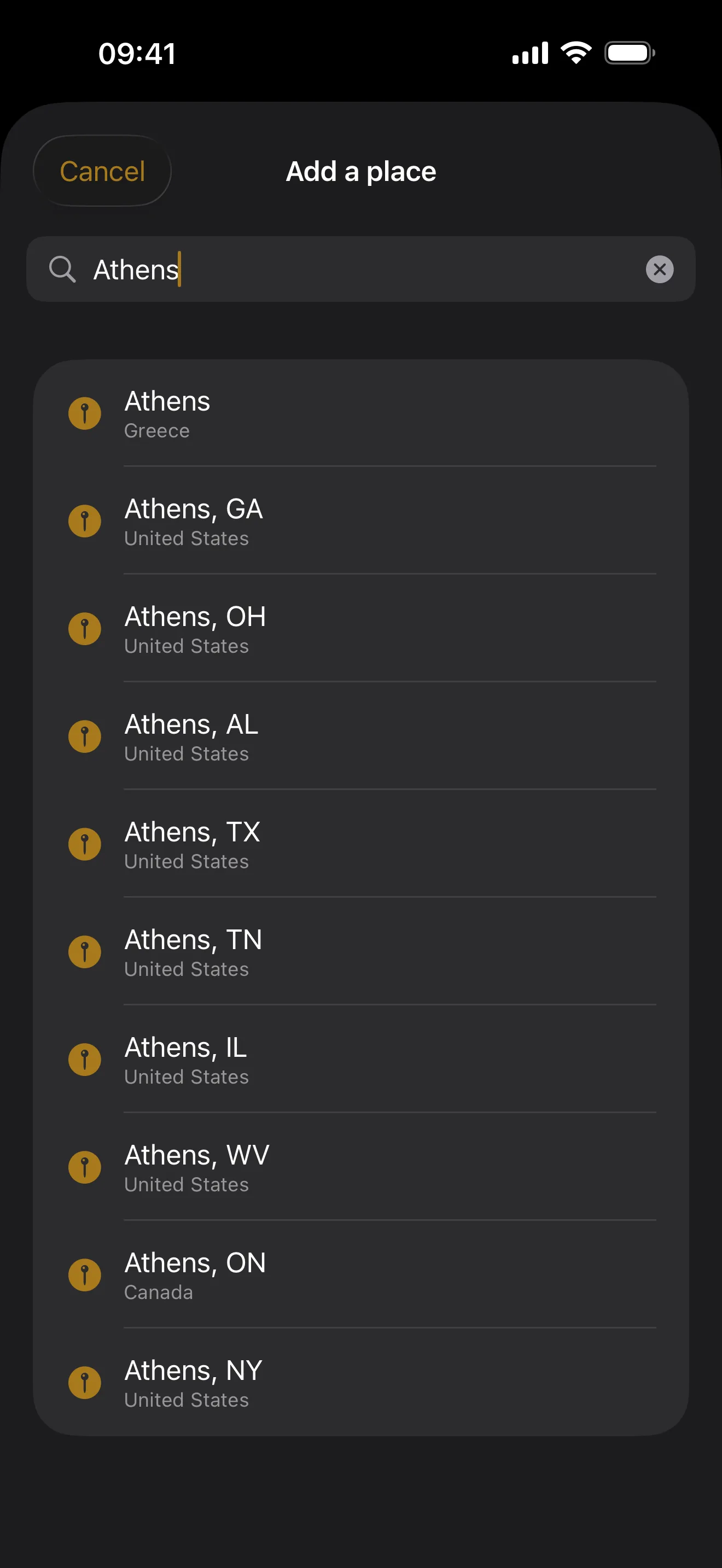
1. Add a place
Tap the plus button on the Places screen and type a name. Cities and towns come from Apple Maps. A whole country is offered as its own kind of answer, listed under Countries above the places: a country watches everything inside its borders, while a place watches a distance around a point.
Add your home, family abroad, or somewhere you are about to travel. There is room for twenty.
2. Choose how far it watches
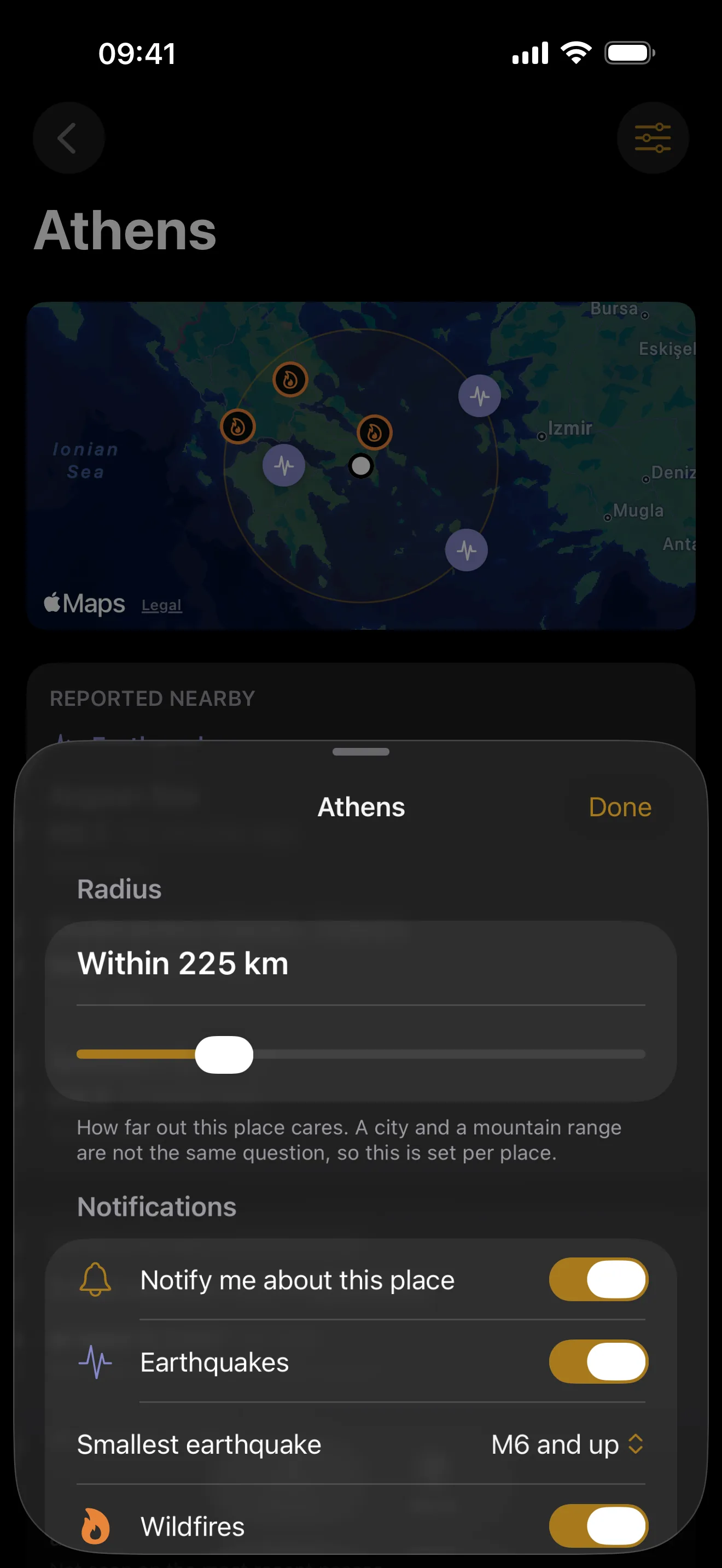
Open the place and tap the sliders button in the corner. The radius is at the top of the sheet. The default is 300 km, and it is set per place, because a city and a mountain range are not the same question. A country has no radius: its border decides.
3. Read what is there
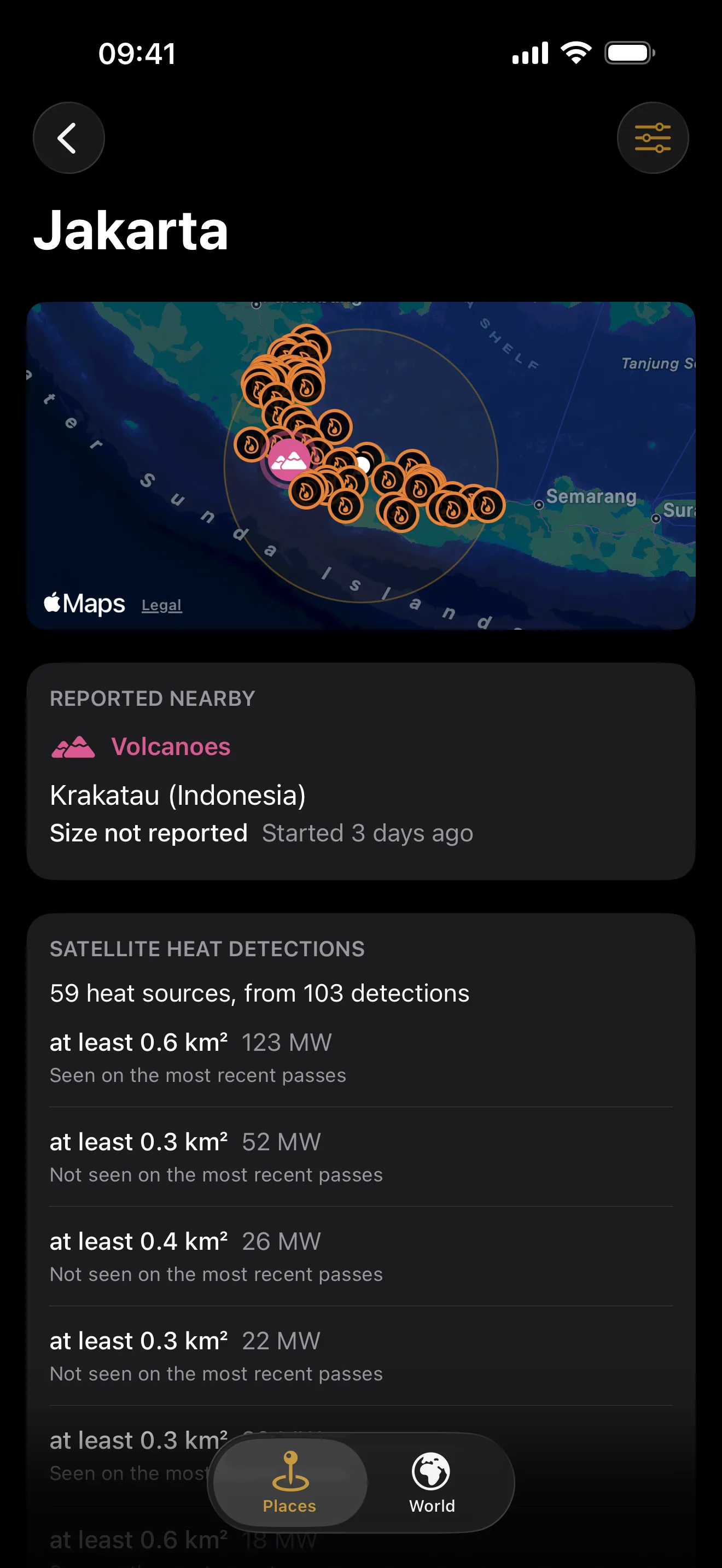
A place shows two things, kept apart on purpose.
Reported nearby lists what an agency has published near the place: earthquakes, wildfires, storms, floods and volcanoes, with how big and how long ago. Tap one for its card, which draws the outline, shaking map or wind field where the source provides one, links the full report, and shows headlines.
Satellite heat detections are a second opinion. NASA’s satellites measure heat, not fires, so industry and agricultural burning show up too, and persistent industrial sources are filtered out. A detection is a weaker claim than a reported wildfire, which is why it never gets mixed into the list above.
If a place says “Nothing significant”, that is a real answer. Many places see nothing for months.
4. Turn on notifications
Open Settings from the gear on the Places screen and turn on “Notify me about these places”. The phone asks for permission once.
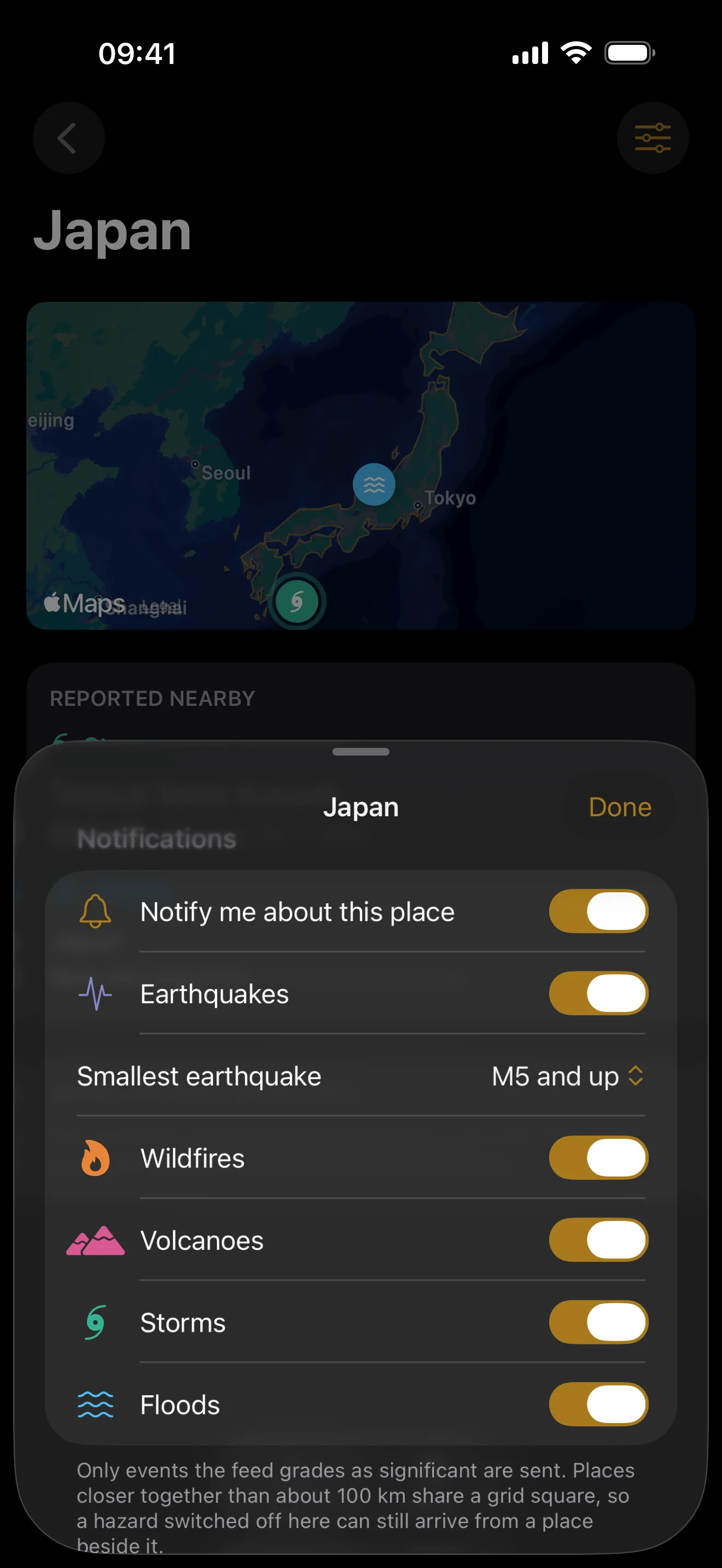
Then choose per place what you want to hear about. Open the place, tap the sliders button, and pick the hazards and, for earthquakes, the smallest magnitude worth a notification. The default is M6 and up. A hazard switched off in Settings stays off everywhere.
Only events the feed grades as significant are ever sent. The guide “What LiveTerra notifies you about” explains what that means and why a notification can arrive from a place beside yours.
5. Watch where you are, if you like
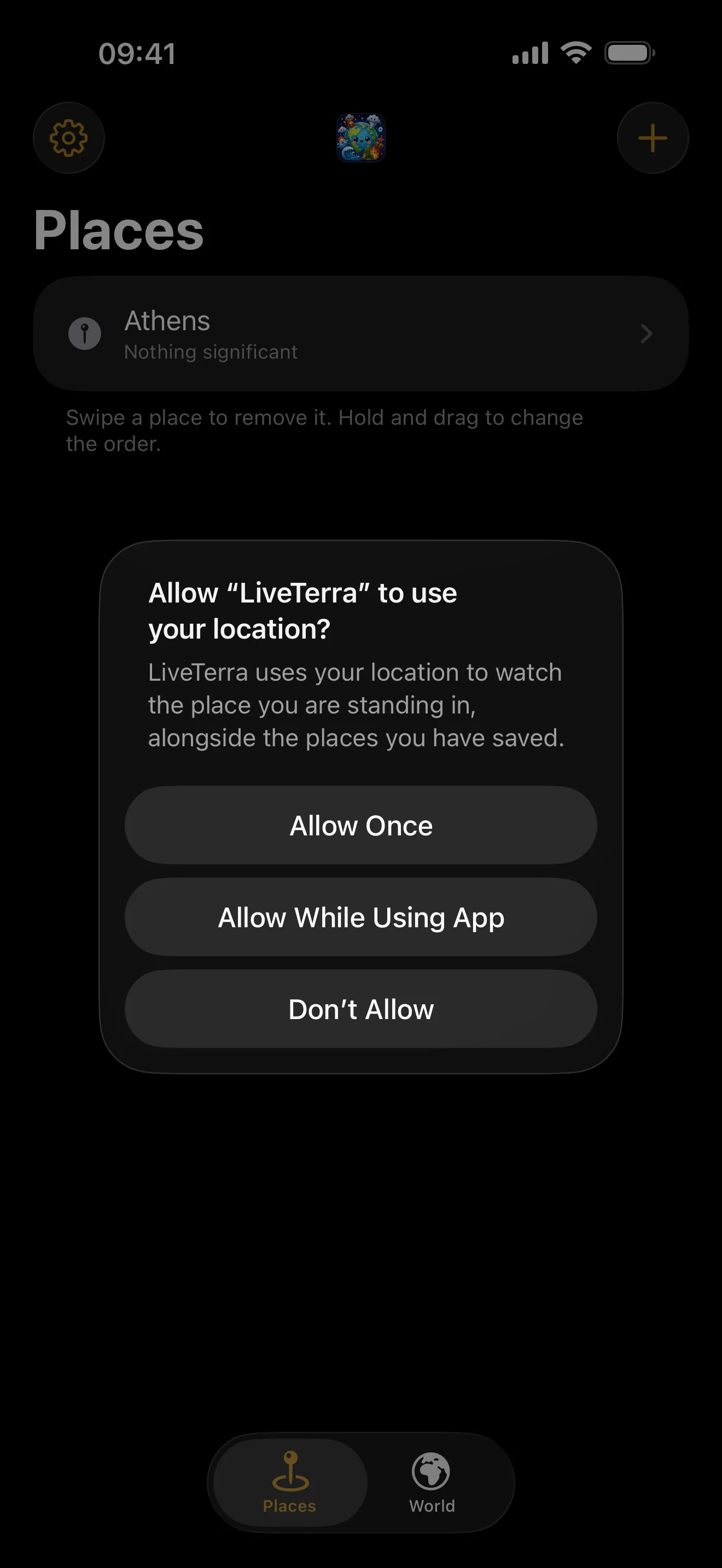
Tap “Also watch where I am” on the Places screen. The phone asks whether LiveTerra may use your location: choose “Allow While Using App”. LiveTerra asks for location only while you are using the app, and never in the background.
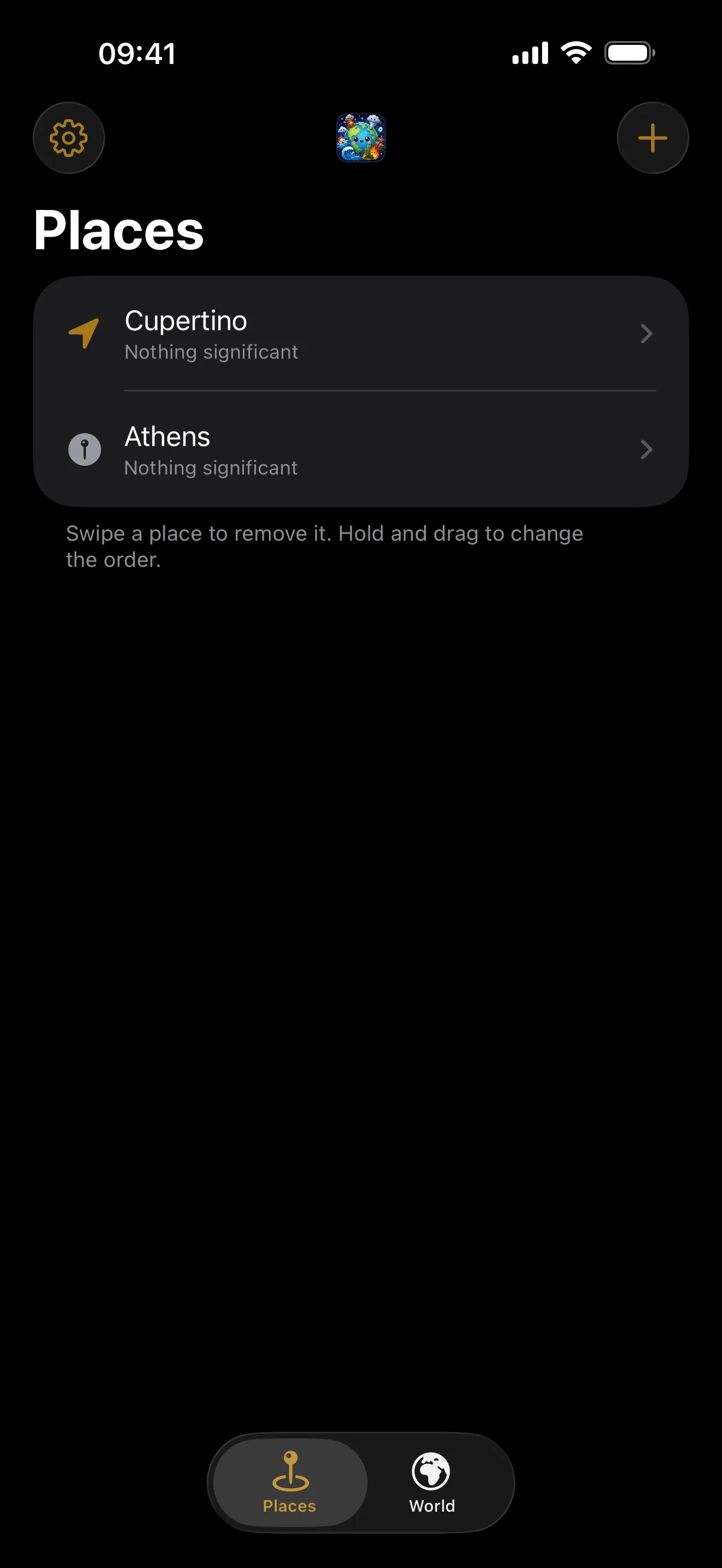
Your position then becomes a watched place that moves with you, pinned to the top of the list with an arrow instead of a pin. It matters most just after you land somewhere. Delete the row to stop.
6. Keep the list in your order
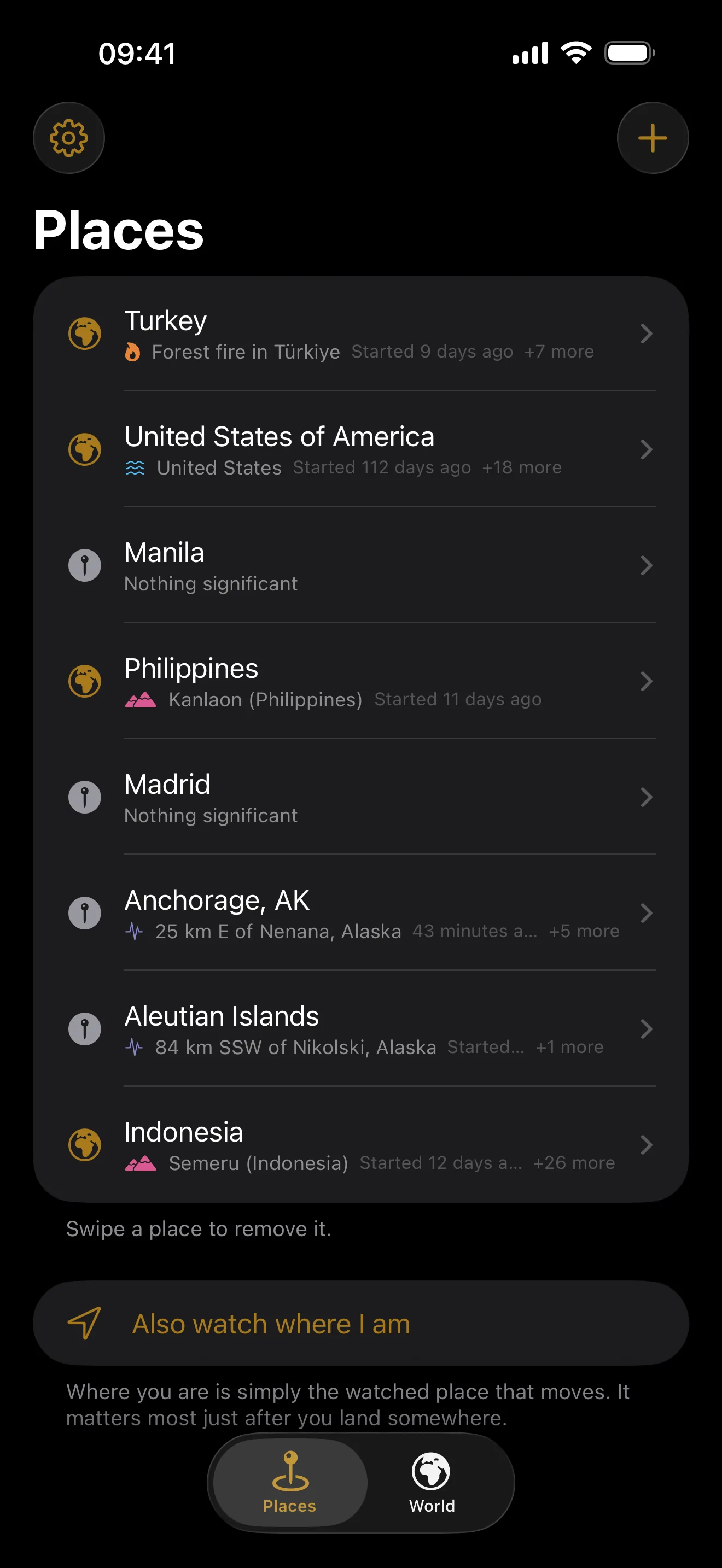
Hold a place and drag it. The first place is also where the World tab opens when you are not watching where you are. Swipe a place to remove it.
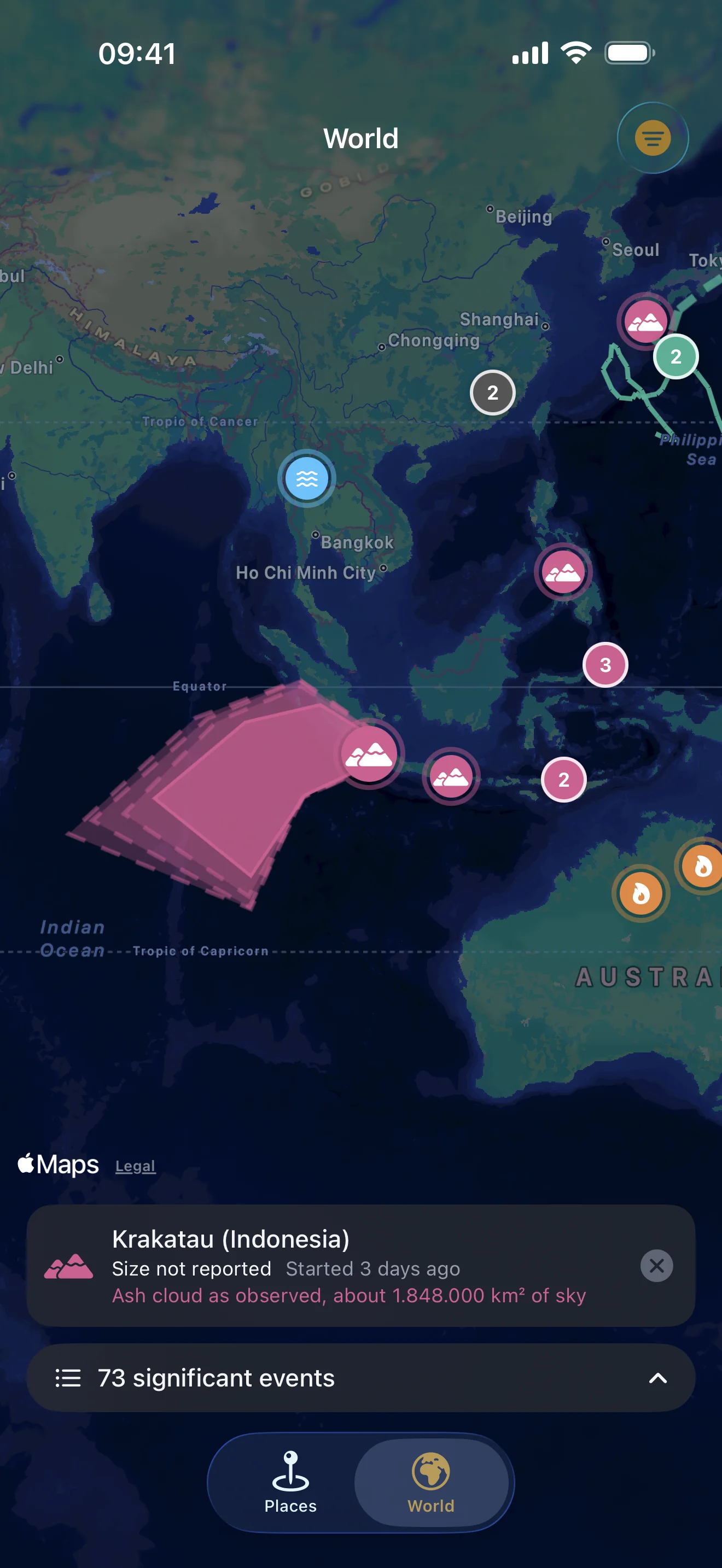
The World tab
The second screen shows everything the app knows about, ranked by how significant it is, on one map. It opens on your part of the world. Tap the list to browse by hazard, the chips to hide a hazard, and the filter in the corner to switch between significant events and everything, which adds the small earthquakes. Tap a marker for its card, and “Show me on the world map” from any card takes you there.